Jewelry detail enhancement
Improve the visibility of prongs, engraving, edges, and metal texture while preserving the overall design.
AI jewelry photo enhancer
Increase the resolution of a jewelry image and improve visible prongs, engraving, and metal texture. Export the enhanced image or use it as a clearer 3D, depth map, or bas-relief input.
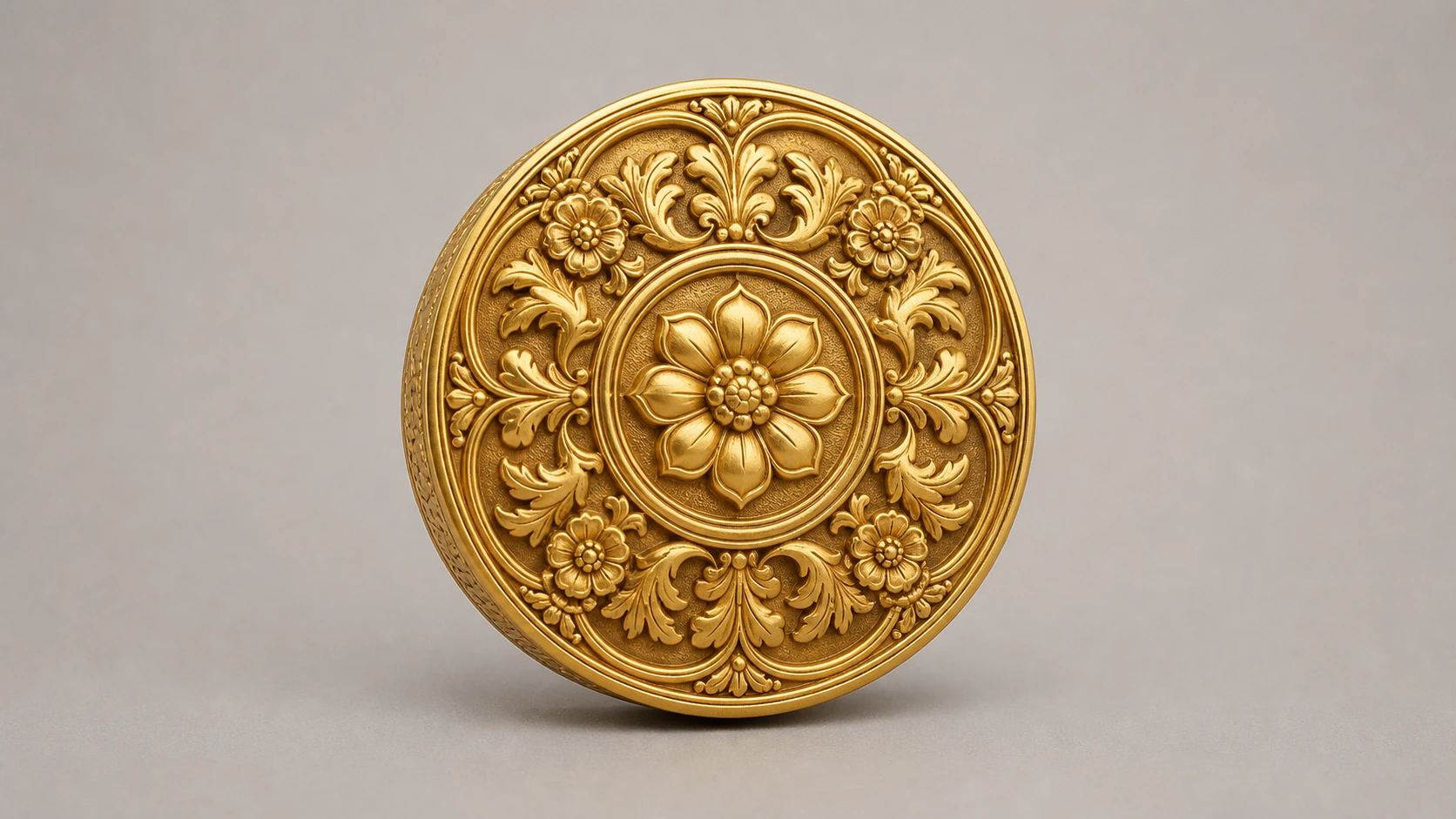
Text is saved only as a project note and does not guide "Cutout" · Drop a jewelry image to use it as input
By uploading, you confirm you hold the rights to this image and agree to the Terms of Service and Privacy Policy.
Sign up for 40 credits for real generations · failed steps auto-refund
Improve the visibility of prongs, engraving, edges, and metal texture while preserving the overall design.
Create a larger image for product presentation, print, cropping, depth maps, bas-relief, or 3D processing.
A cleaner, higher-resolution source can make background removal, depth estimation, and 3D generation easier to review.
The goal is to enlarge and enhance rather than redesign the piece, but AI may infer small details. Check prongs, stone count, engraving, logos, and text against the original before publishing or using the result downstream.